Copy on your Mac.
Paste on your iPhone.
Everything you copy on your Mac, on your iPhone and iPad a second later. It syncs through your own iCloud, with no account to create.
Free. Requires macOS 15 Sequoia or later.
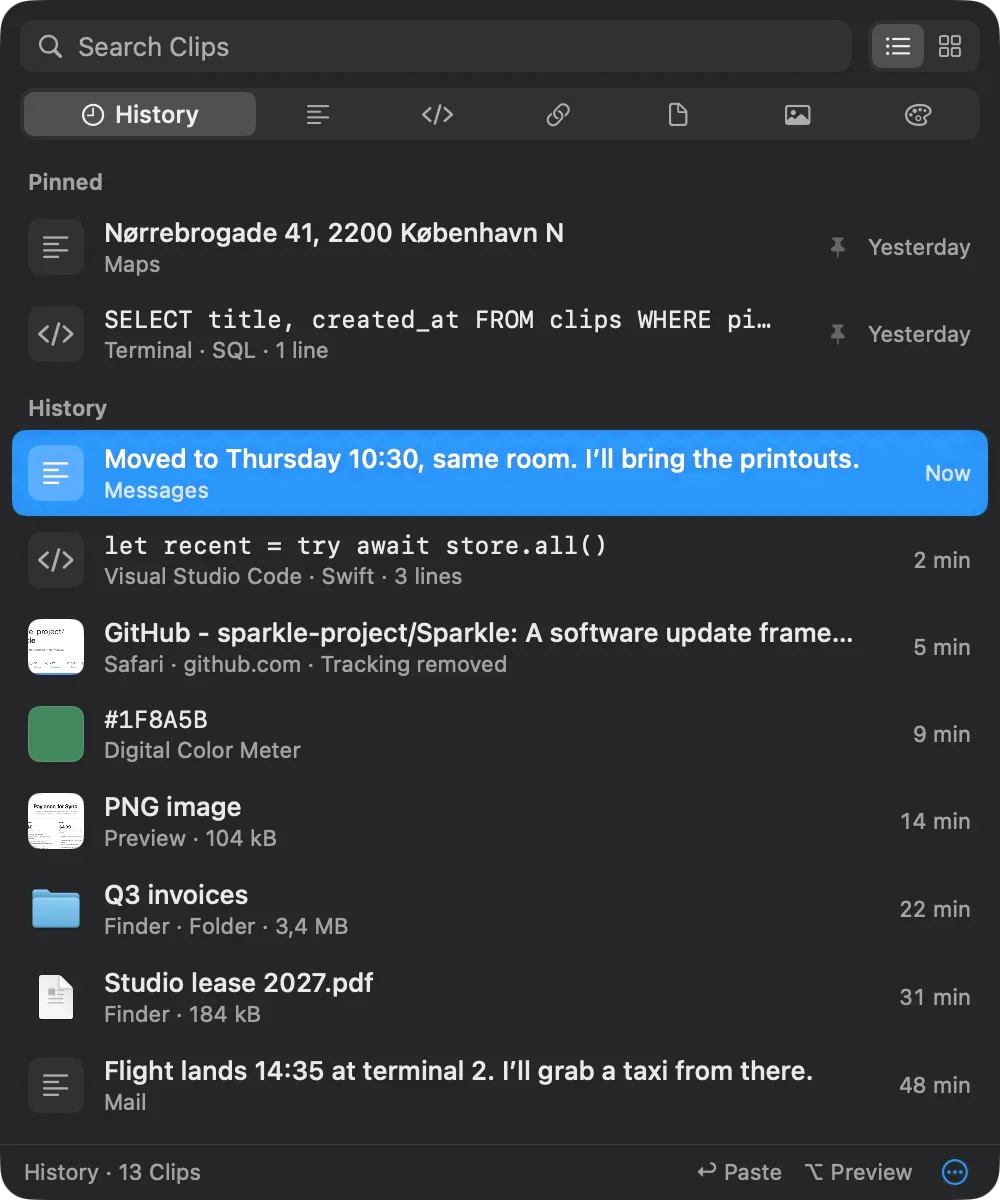
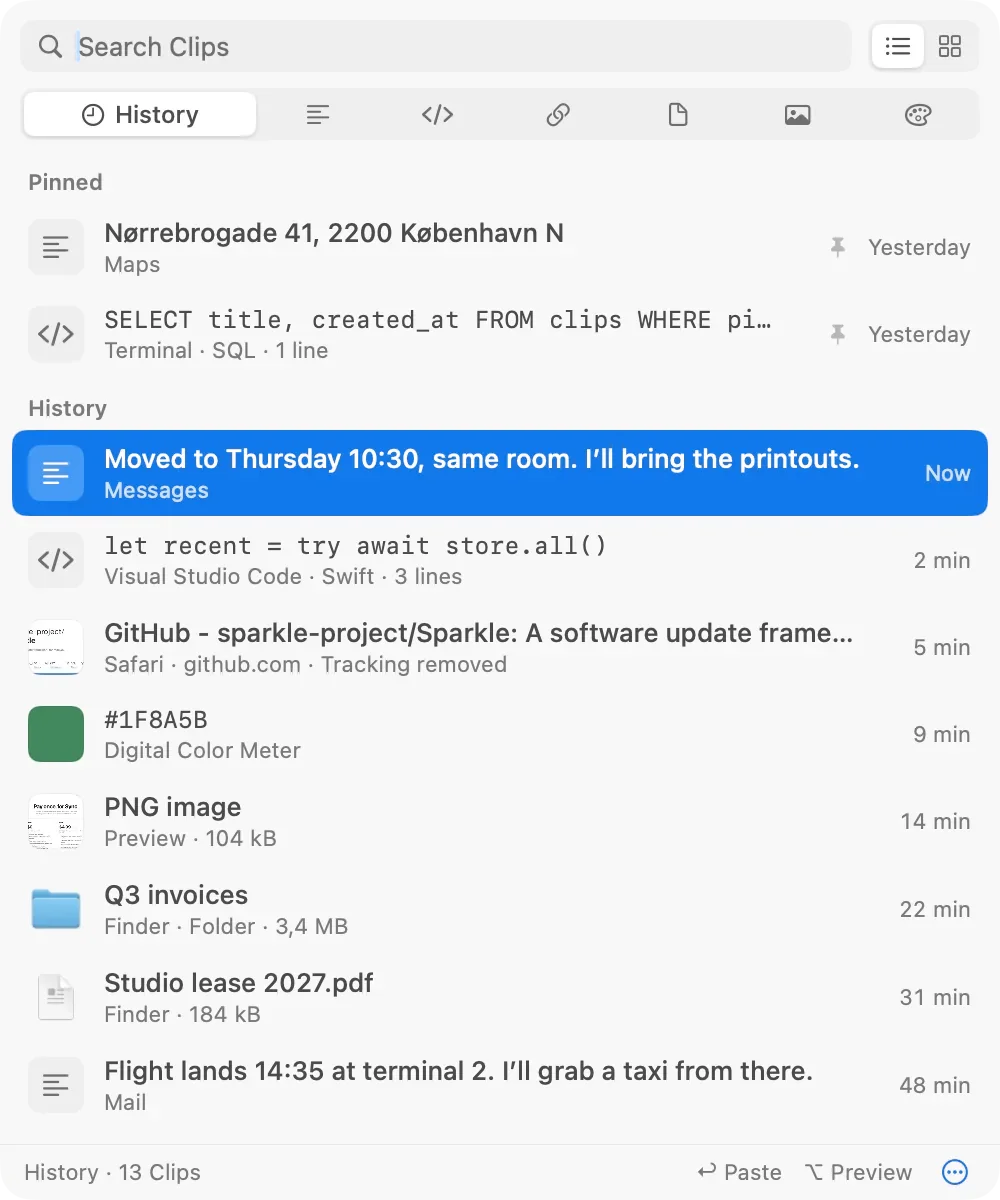
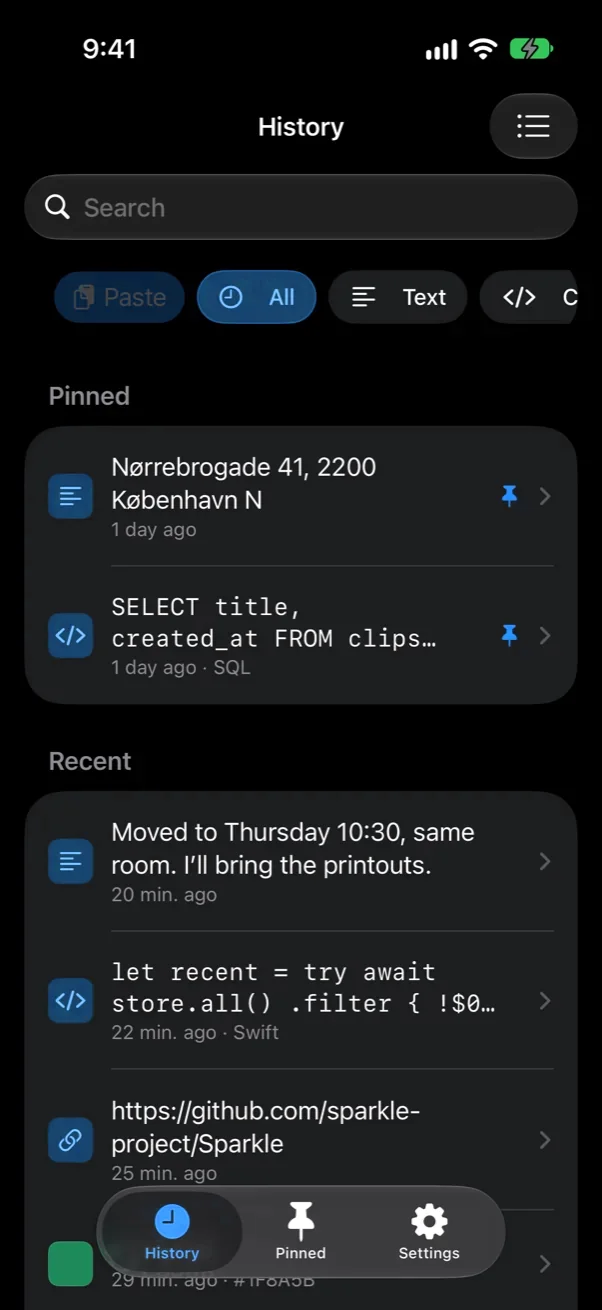
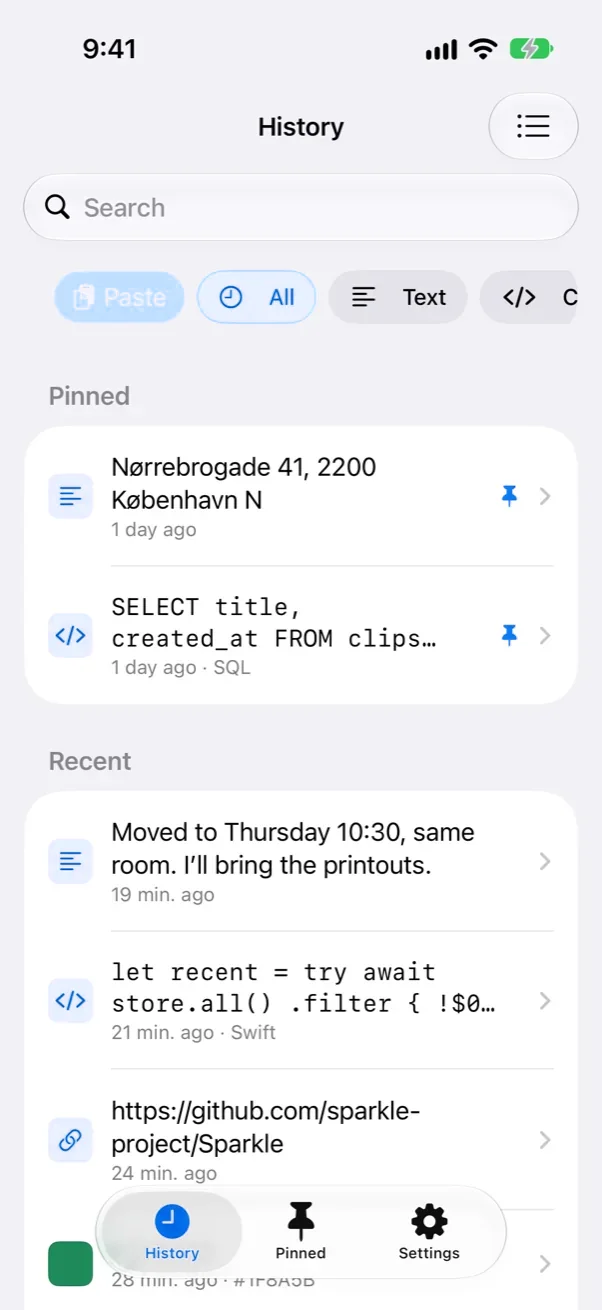
From one device to the other in about a second.
Copy on your Mac.
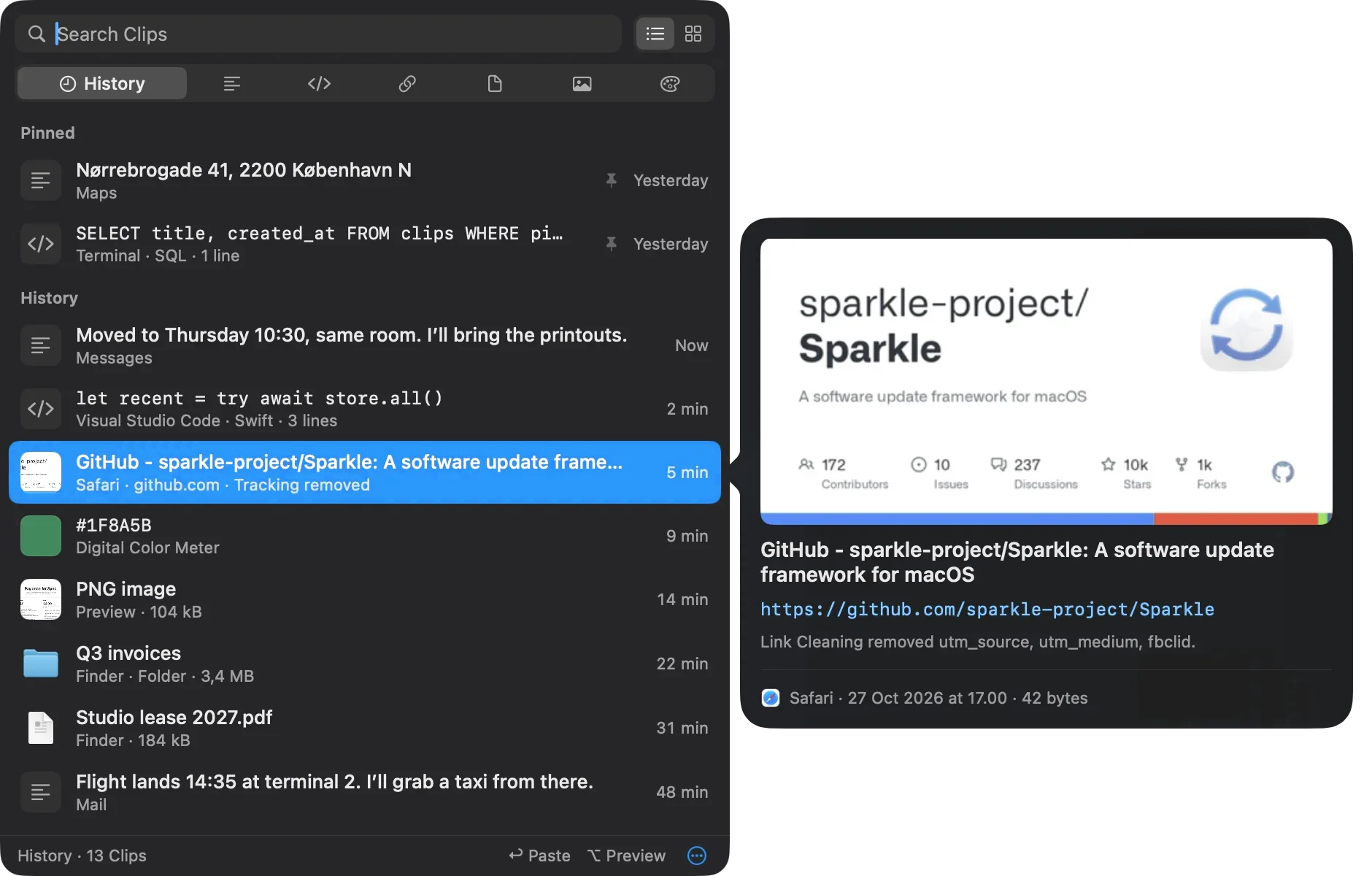
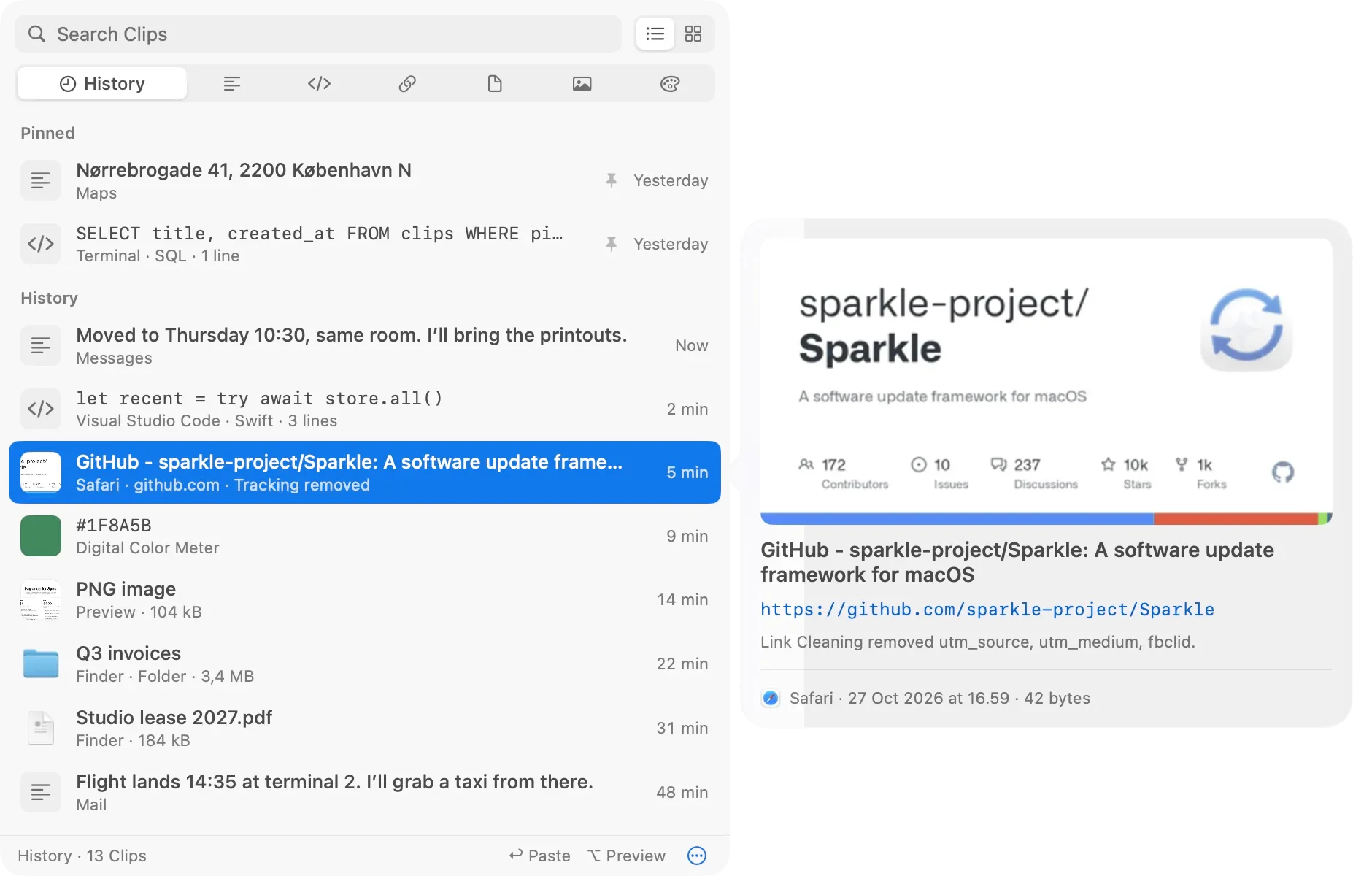
Copy the way you always have. CopyHop sorts each Clip into its Category and adds it to History. Press ⌘⇧V to see everything you’ve copied, and hold Option for a closer look.
Sync through your iCloud.
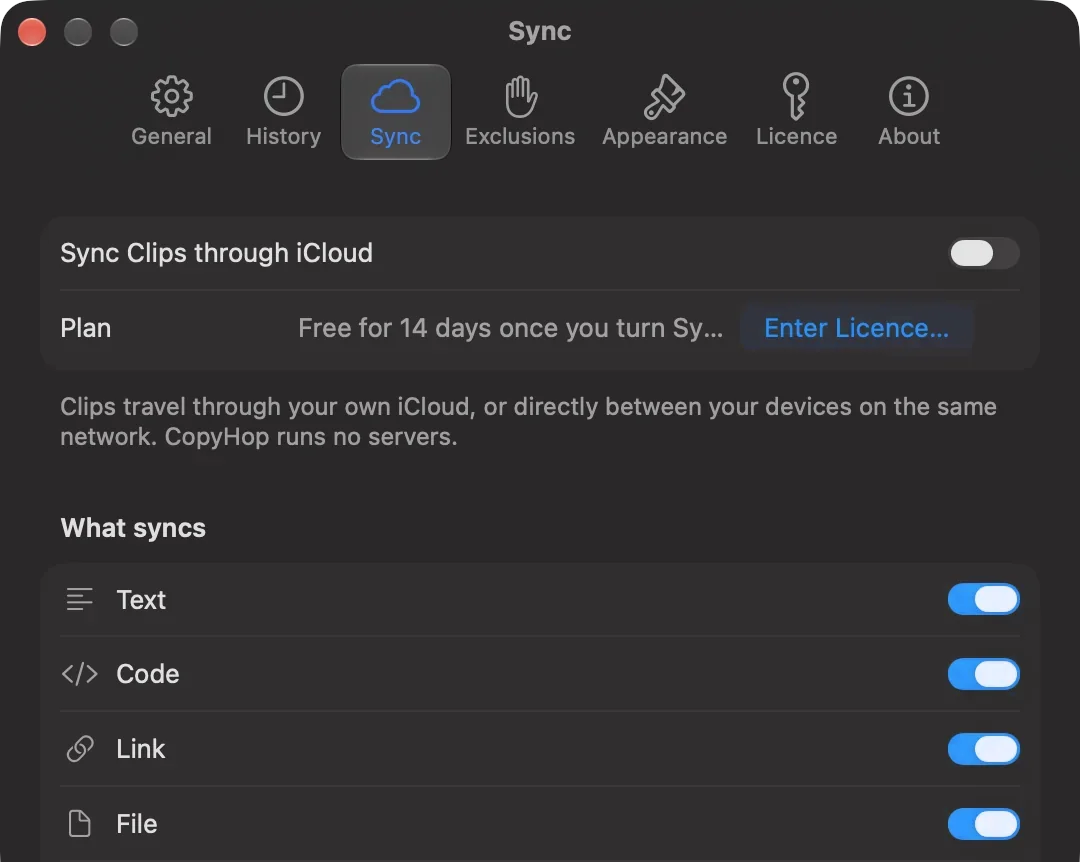
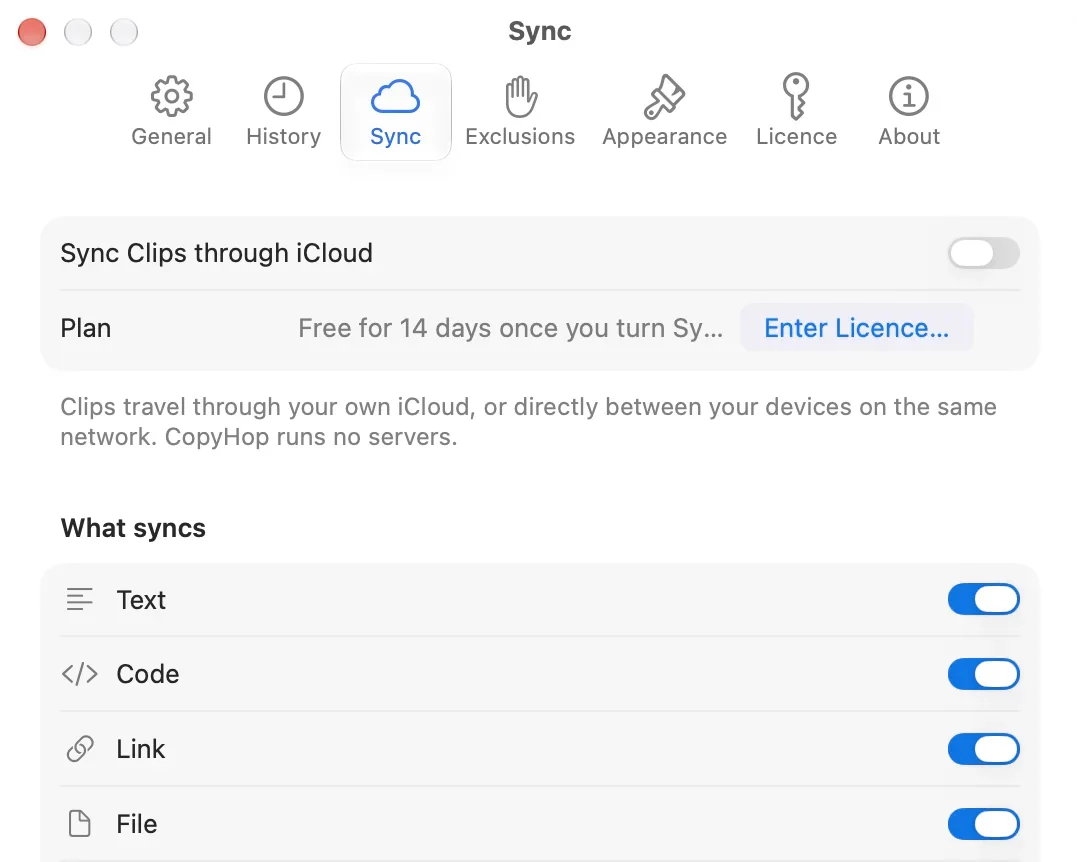
The Clip goes to your private iCloud database. When your iPhone is on the same Wi-Fi with CopyHop open, the two devices also talk directly and skip the wait.
Large Clips stay where they were copied. Anything over your Sync Size Cap (25 MB unless you raise it, up to 200 MB) gets a Local-only badge and stays on that device. You can also turn sync off for a whole Category.
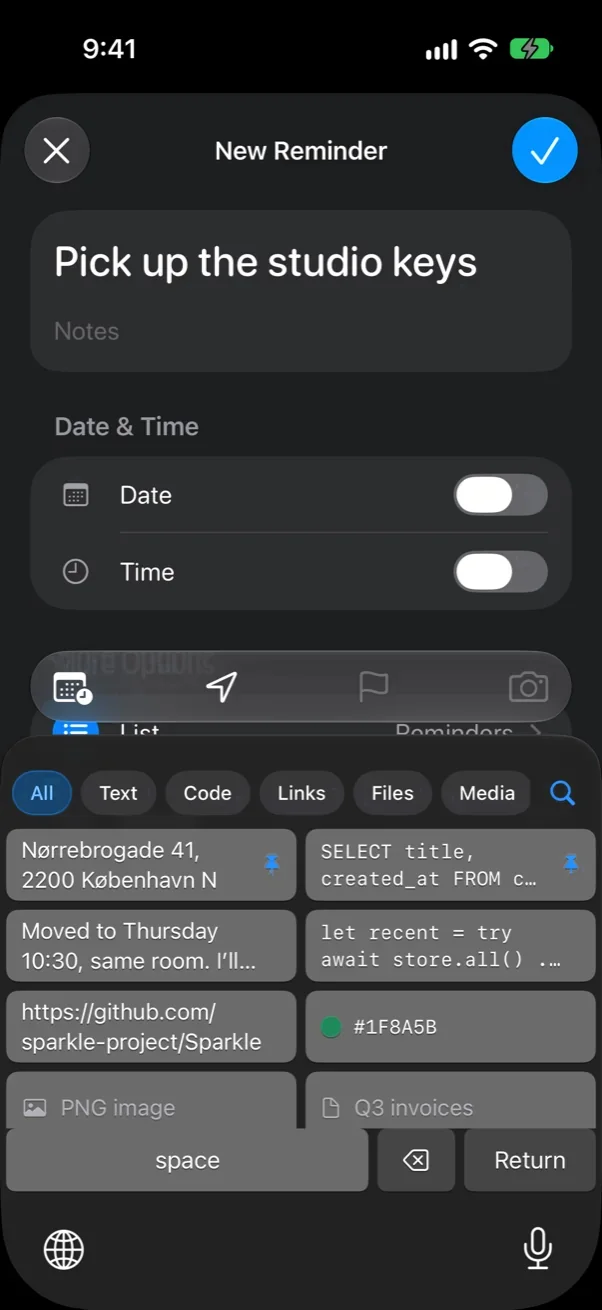
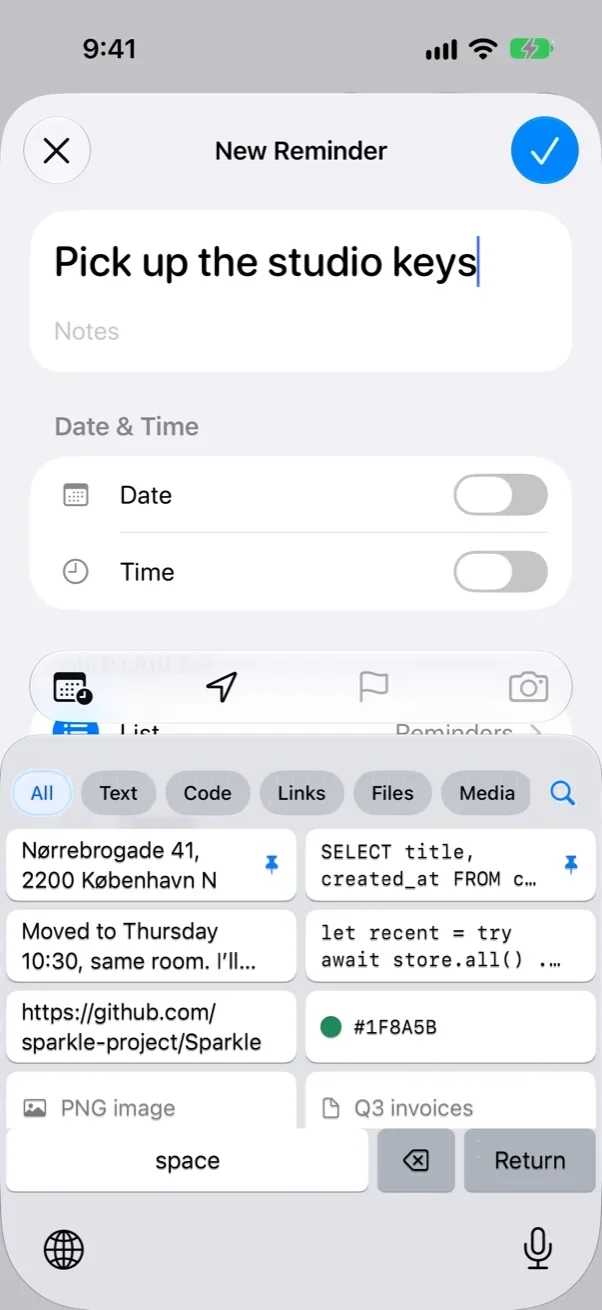
Paste on iPhone and iPad.
Paste from the CopyHop keyboard, the app or the share sheet. Copy something there and it makes the same trip back to your Mac.
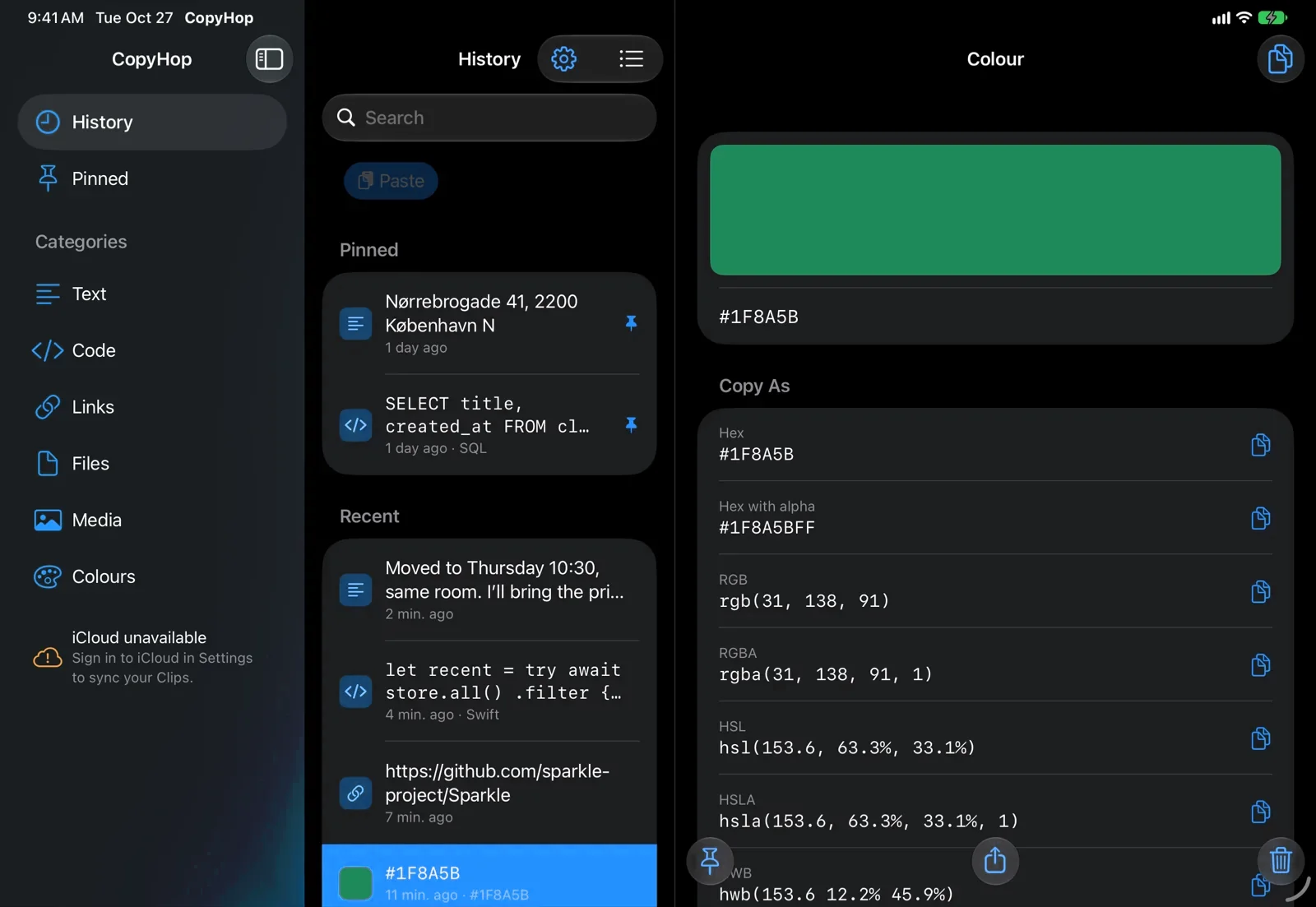
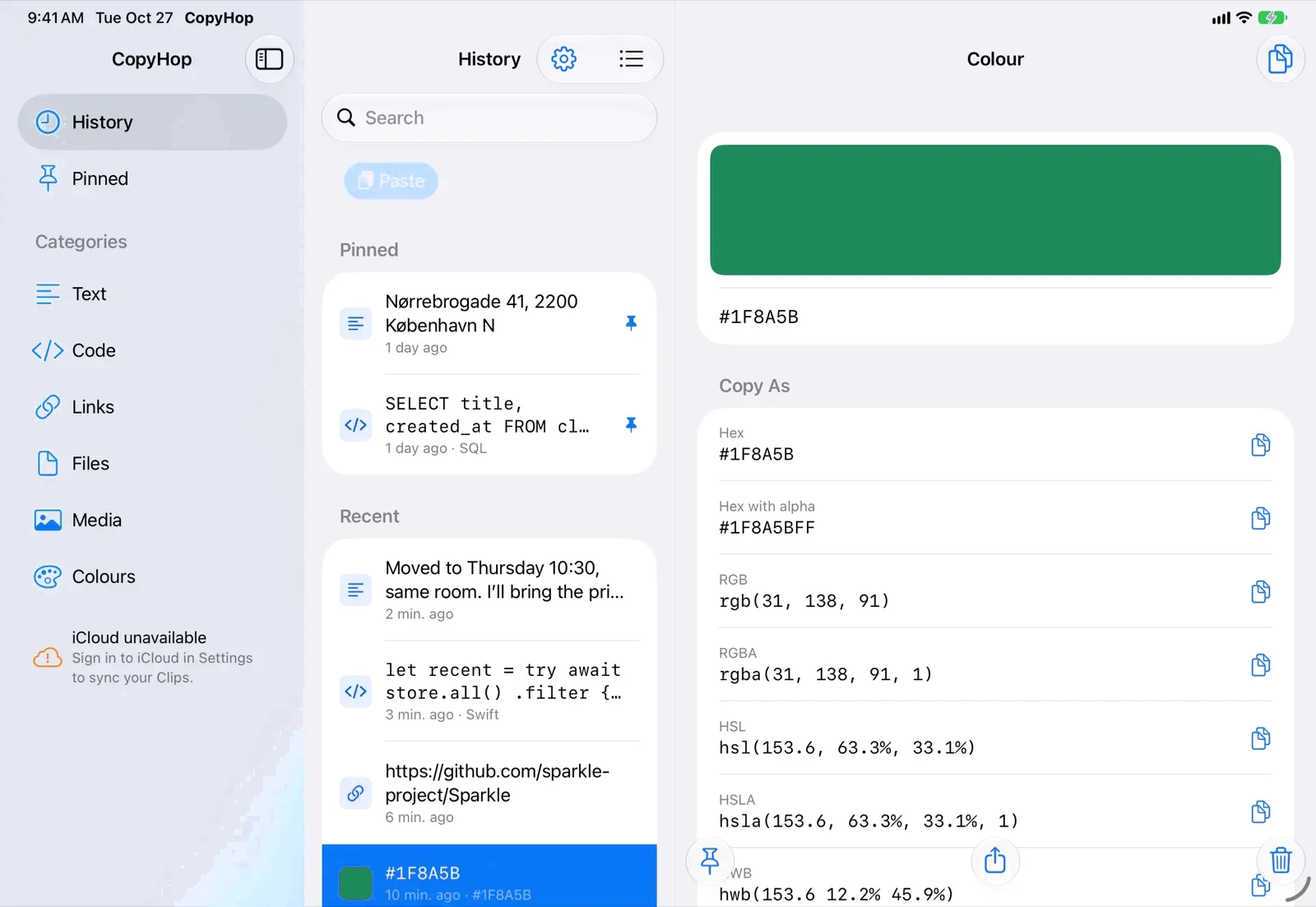
Six Categories. One History.
Every Clip lands in one Category the moment you copy it. History shows them all together, newest first.
Text
Notes, addresses, replies you’re drafting. Anything that isn’t code, a link, a file, media or a colour.
Code
Recognised in more than 50 languages and shown with syntax highlighting.
Link
Parameters like utm_ and fbclid are stripped as you copy. You get the page title and a thumbnail.
File
Several files or a whole folder copied at once stay together as one Clip.
Media
Images, video and audio files, with a preview.
Colour
Read in more than 20 formats, from hex and RGB to Oklch, CMYK and SwiftUI Color.
Everything else it does
Paste anywhere
Pick a Clip and CopyHop pastes it into the app you’re using.
Fuzzy search
Type a few letters of anything you copied.
Pins
Keep the Clips you reuse at the top. Pins never age out.
History Cap
Keep anywhere from 20 to 300 Clips. Free and Pro get the same.
List or grid
Switch views and resize the panel. Hold Option over a Clip to preview it.
Hotkeys
⌘⇧V opens the panel. Set your own shortcuts for the rest.
Exclusions
Choose apps and URLs CopyHop should never capture from.
Password filter
Copies from 1Password, Bitwarden, LastPass and other password managers are skipped.
Link previews
Titles and thumbnails for the links you copy.
Code themes
Six syntax themes to choose from.
Menu bar
CopyHop lives in the menu bar. It only shows in the Dock if you ask it to.
iPhone and iPad
A universal app with a keyboard for pasting Clips, a share extension and Shortcuts actions.
Your iCloud, not our servers.
CopyHop has no accounts, no analytics and no crash reporting. Your Clips sync through your private iCloud database, which we can’t see into. These are the only times the app goes online:
- iCloud
- To sync Clips between your devices.
- Your local network
- To send Clips straight to your own devices on the same Wi-Fi.
- Link previews
- To fetch the title and thumbnail of a link you copied.
- Licence check
- To validate a Pro Licence on your Mac.
- Updates
- To check for a new Mac version.
Free on your Mac. $4.99 once for Sync.
Free
$0
Everything local. All six Categories, search, Pins, Exclusions and a History of up to 300 Clips. The iPhone and iPad app is free too, and so is sync between iPhones and iPads.
Pro
$4.99 once
Adds Sync between your Mac and your iPhone and iPad. Try it free for 14 days. One Licence covers three Macs.
Questions people ask
What syncs?
Every Clip, in every Category, and your Pins. You can turn sync off for any Category, and Clips over your Sync Size Cap stay on the device you copied them on.
How does the Trial work?
You get 14 days of Sync from the first time a Mac turns it on. When the 14 days are up, Sync pauses on that Mac until you enter a Licence. Nothing else changes.
Why does the CopyHop keyboard ask for Full Access?
iOS only lets a keyboard read data it shares with its app when Full Access is on. Your Clips live in storage shared with the CopyHop app, so the keyboard needs Full Access to show them. It doesn’t record or send what you type, and the rest of the app works without it.
What do I need to run CopyHop?
A Mac running macOS 15 Sequoia or later. The iPhone and iPad app needs iOS 18 or iPadOS 18 or later. For Sync, every device has to be signed in to the same Apple Account with iCloud turned on.
Start with the free Mac app.
Requires macOS 15 or later. Add the iPhone app whenever you like.